

· Guide · 3 min read
Round Robin Lead Assignment for WPForms and Contact Form 7
Learn how to automatically distribute leads from WPForms and Contact Form 7 to your sales team using round robin assignment - no automation platform needed.
If you’re using WPForms or Contact Form 7 on your WordPress site, you’ve probably noticed a problem: every lead goes to a single inbox. Someone has to manually forward leads to different sales reps, which is slow and inconsistent.
Round robin lead assignment solves this by automatically distributing leads to your team members in rotation. With EnforcedFlow, you can set this up by simply changing where your form sends notifications—no automation platform or coding required.
How It Works
EnforcedFlow provides lead routing software that works through email. Here’s the basic flow:
- You create a group in EnforcedFlow and add your team members
- Each group gets a unique email address
- You configure your WordPress form to send notifications to this address
- EnforcedFlow automatically routes each submission to the next agent in the rotation
It’s simple lead routing tools without the complexity of setting up Zapier, Make, or any other automation platform.
Setting Up Your Team
First, create your team group in EnforcedFlow:
- Sign up or log in to EnforcedFlow
- Create a new group for your sales team
- Add team members with their email addresses
- Copy your group’s unique email address—you’ll use this in your form settings
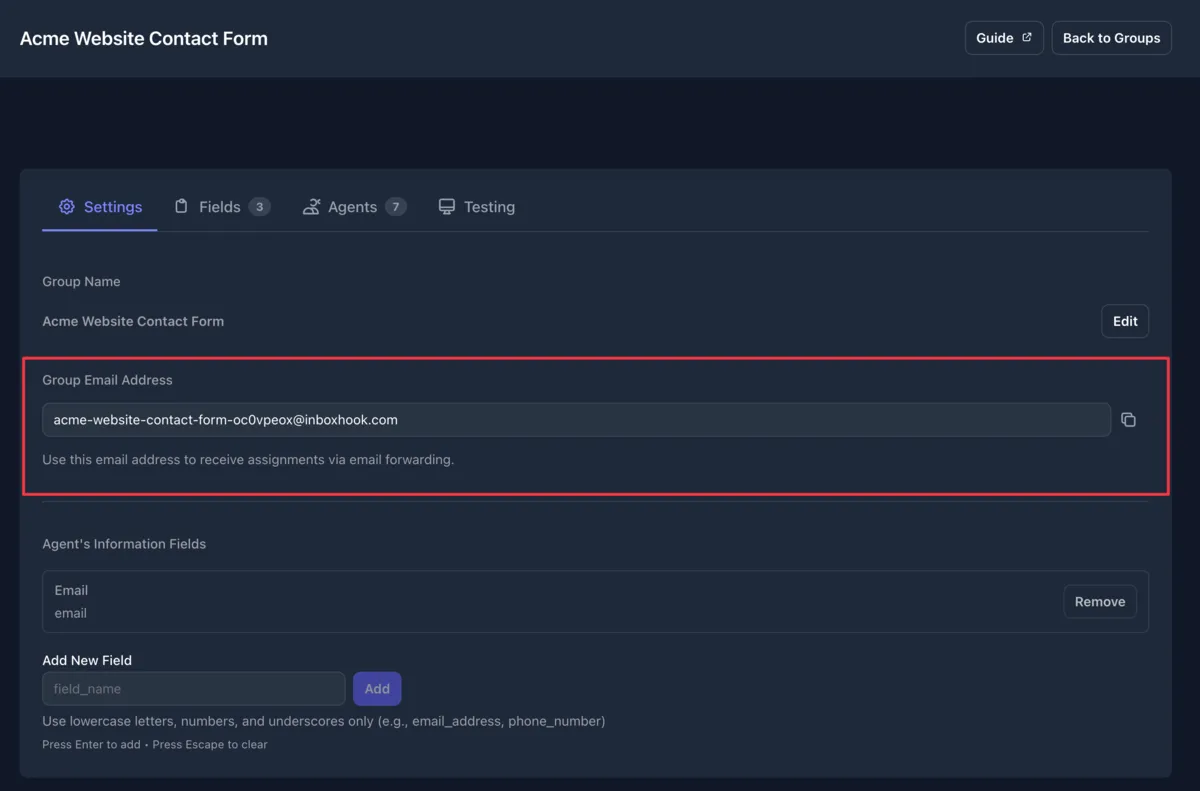
Here’s a quick walkthrough of the setup process:
WPForms Setup
To connect WPForms to EnforcedFlow:
- In your WordPress admin, go to WPForms and edit your form
- Navigate to Settings > Notifications
- Make sure notifications are enabled
- In the Send To Email Address field, paste your EnforcedFlow group email address
- Save your form
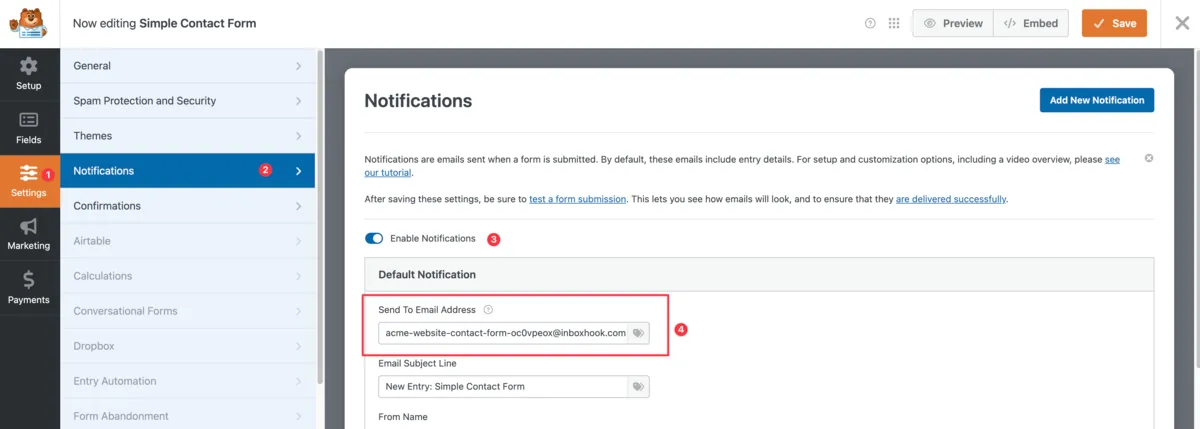
That’s it. Every form submission will now be routed to your team members in round robin order.
Contact Form 7 Setup
For Contact Form 7, the process is similar:
- In your WordPress admin, go to Contact > Contact Forms
- Edit your form and click the Mail tab
- In the To field, enter your EnforcedFlow group email address
- Save your form
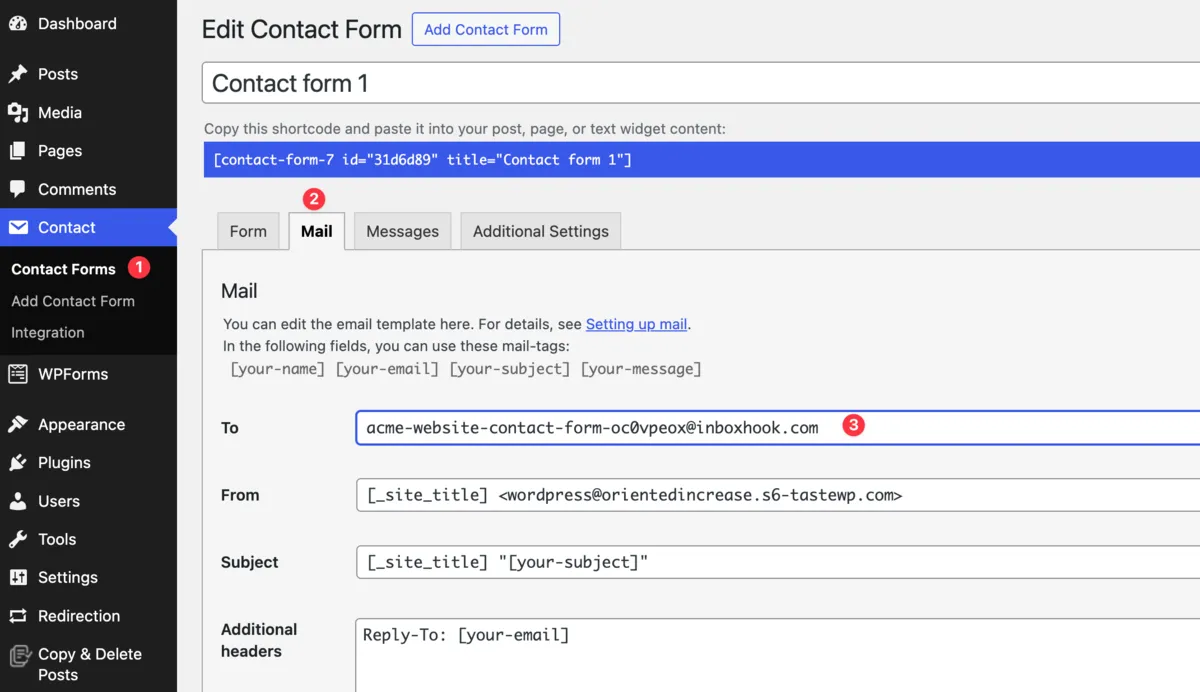
All submissions will now be distributed evenly across your team.
Bonus: Route Leads by Topic
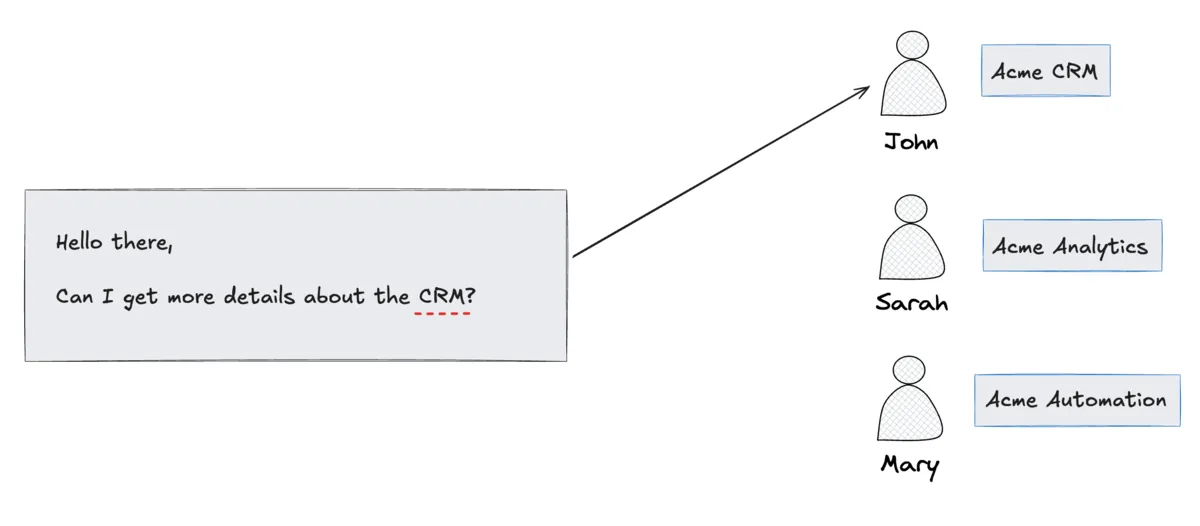
Beyond simple round robin, EnforcedFlow can route leads based on their content using AI-powered criteria routing.
For example, you might want:
- Product inquiries to go to your product specialists
- Support questions to go to your technical team
- Partnership requests to go to business development
EnforcedFlow analyzes the email content and routes it to the right person or team automatically. You can combine this with round robin—so product inquiries get distributed evenly among your product specialists.
Getting Started
Ready to automate your lead distribution? Sign up for EnforcedFlow and set up round robin assignment for your WordPress forms.
For detailed setup instructions, check out our email forwarding documentation.